Storage that carries its weight
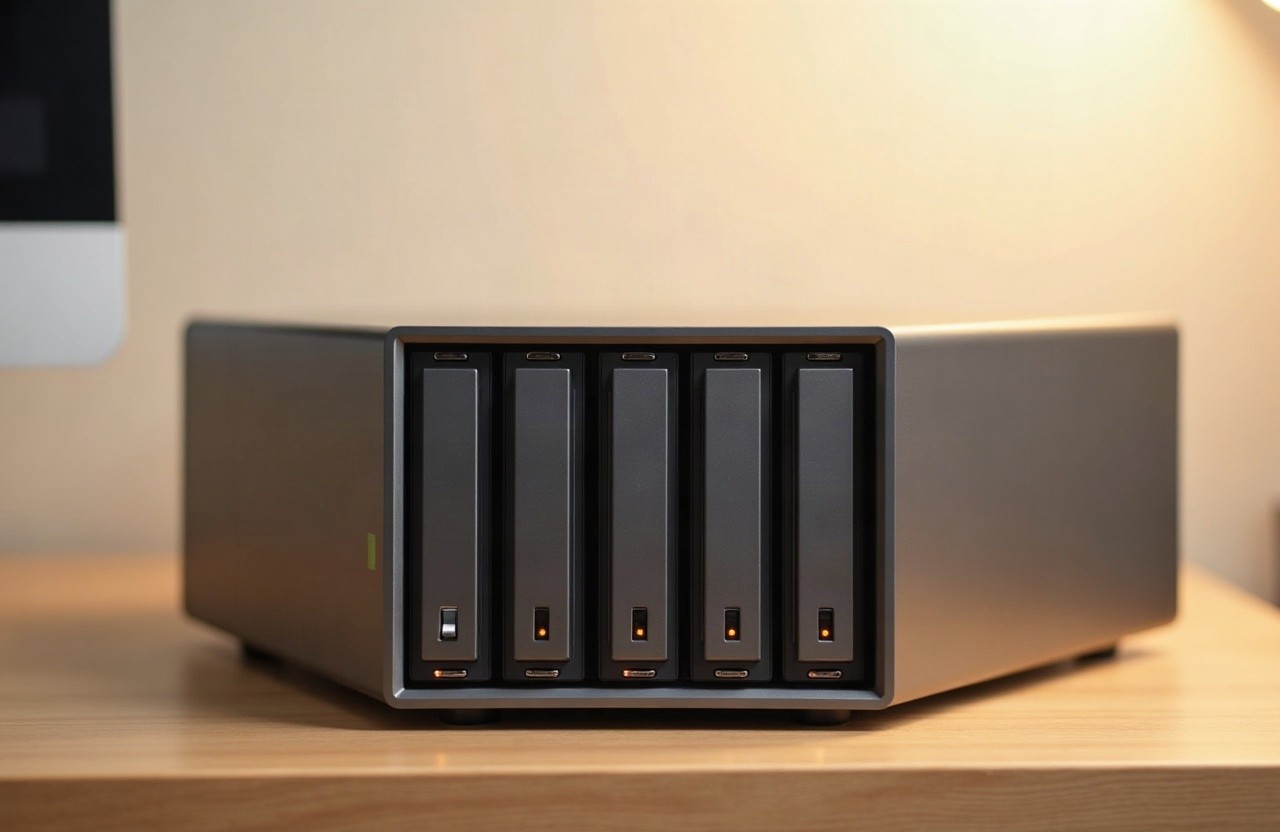
Sazhen is a five-bay network-attached storage appliance for studios and small offices. Set it on a desk, plug it in, and it takes over backups, shared folders and remote access for the whole team.
Hardware
Five hot-swap bays
3.5" and 2.5" drives, RAID 0/1/5/10 or ZFS mirror, online expansion without downtime.
Dual 2.5 GbE
Link aggregation or failover, SMB 3.1, NFS v4, AFP and Time Machine targets out of the box.
Snapshots and scrubbing
Hourly snapshots with 90-day retention, weekly scrubs, e-mail alerts on degraded arrays.
Remote without a public IP
Built-in WireGuard tunnel for travelling laptops, per-user keys, no port forwarding required.
31 W idle
Quiet 92 mm fan, spin-down on idle, external 90 W supply, UPS handshake over USB.
Five-year warranty
Advance replacement in the EU, next-business-day dispatch, spare drive on the shelf.
Specifications
- Model
- Sazhen 5 (SZ-5B)
- CPU
- Intel N100, 4 cores
- Memory
- 8 GB DDR5, expandable to 32 GB
- Drives
- 5 × SATA III, hot-swap trays
- Capacity
- 10 TB to 80 TB, ZFS or EXT4
- Network
- 2 × 2.5 GbE RJ-45
- Ports
- USB 3.2 ×2, HDMI 1.4, USB-C console
- Power
- 90 W external, 31 W idle
- Dimensions
- 196 × 176 × 232 mm, 3.4 kg
- Warranty
- 5 years, advance replacement
- Firmware
- 3.4 LTS, security updates to 2031
- Management
- Web UI, SSH, REST API
- Directory
- LDAP, Active Directory, local users
- Encryption
- AES-256 at rest, TLS 1.3 in transit
Deployment
Unbox
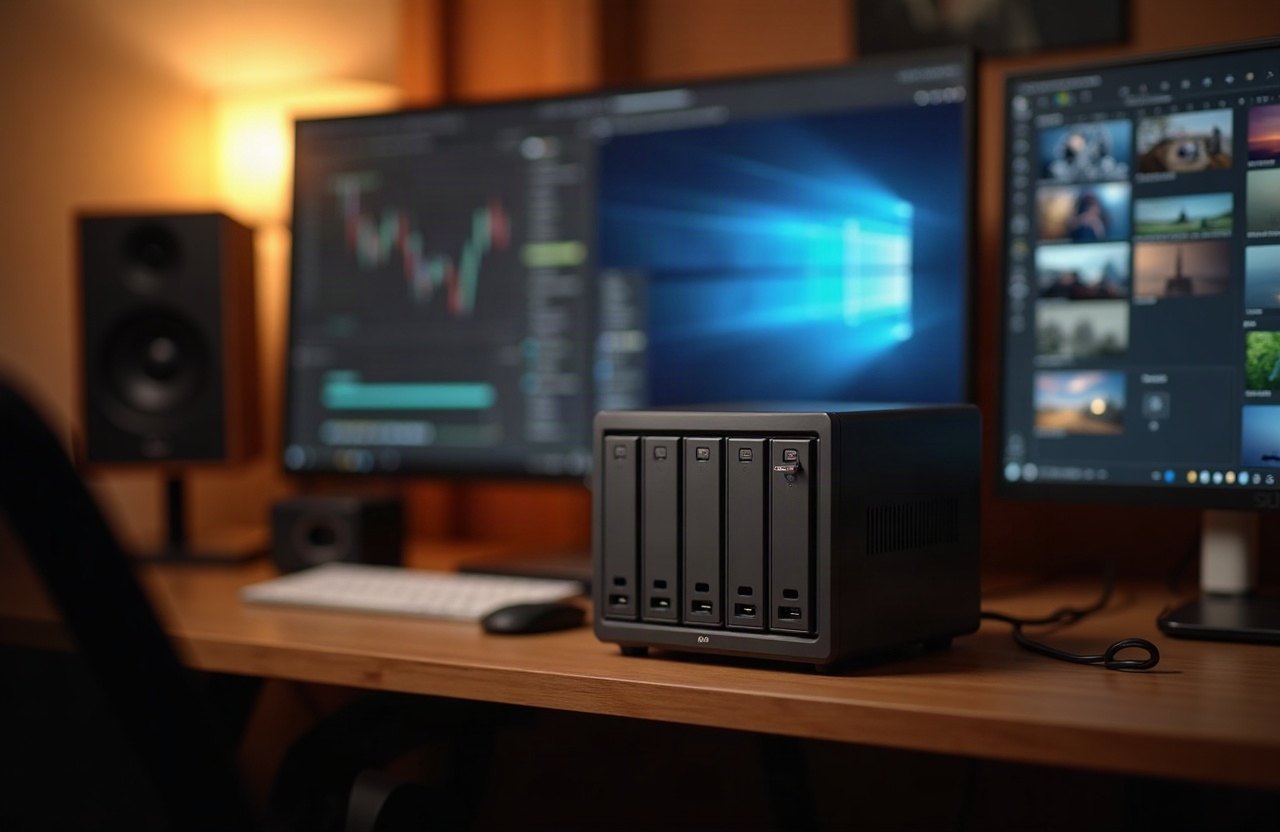
Trays are numbered, drives arrive pre-mounted and labelled. Two cables: power and network.
Point your browser
The appliance announces itself over mDNS. Set an admin password, pick a RAID level, done.
Invite the team
Create users or connect your directory. Shares appear in Finder and Explorer automatically.